Croptimal (at opti.crowproduction.sk) is a free online image optimizer that we at Crow Production built for our own work on client websites. It makes photos up to 90% smaller, converts JPG and PNG to WebP, batch renames files and downloads everything in a single ZIP. It runs right in your browser – no sign-up, no watermark and no limit on the number of images.
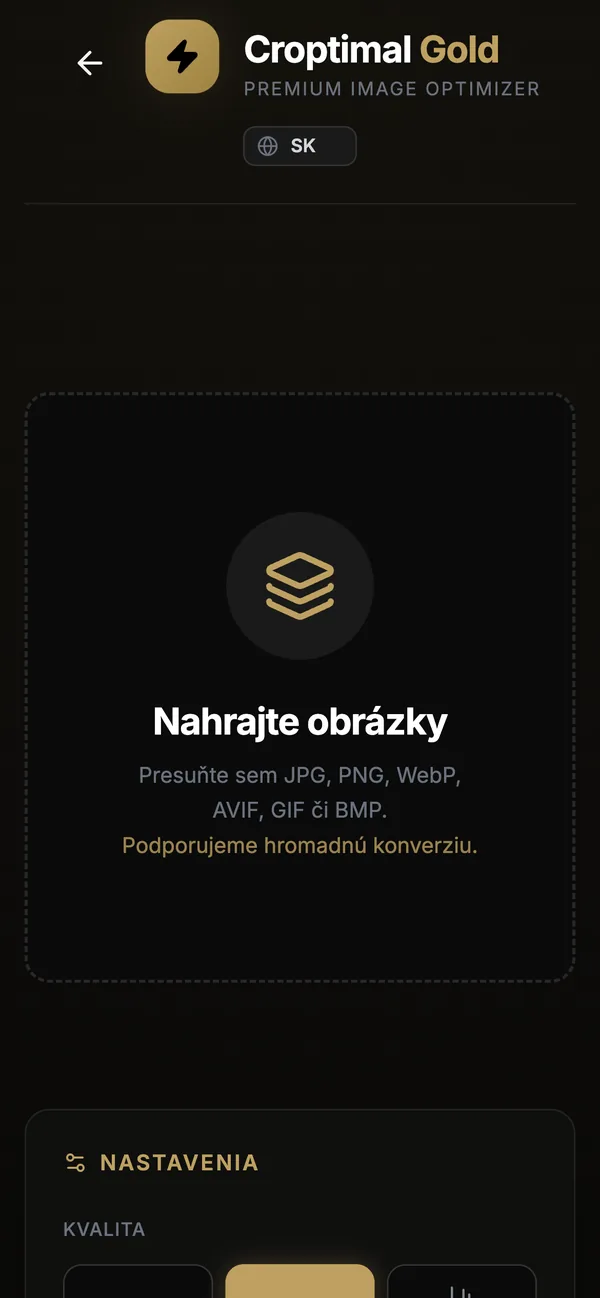
In this article we show every feature on real photos from our shoots, including the results from our test. The screenshots show the Slovak version of the interface – you can switch to English in the top-right corner of the tool.
Croptimal at a glance
| Price | free, no sign-up, no watermark |
| Address | opti.crowproduction.sk |
| Input formats | JPG, PNG, WebP, AVIF, GIF, BMP |
| Output formats | Original, JPG, PNG, WebP, AVIF (browser-dependent) |
| Batch processing | yes, no limit, download one by one or as a ZIP |
| Privacy | photos are never uploaded, everything runs on your device |
| Languages | English, Slovak, Czech, Ukrainian, German, Hungarian |
| Devices | desktop, tablet and mobile |
Why optimize images at all
A photo from a camera or phone is usually 2 to 10 MB. That is far too much for the web – the page loads slowly, especially on mobile, and Google penalises it in its speed metrics (Core Web Vitals, especially LCP). Image compression is therefore one of the basics of SEO and good user experience. Smaller photos are also quicker to send by e-mail, take up less storage and upload to online shops and CMSs without problems.
All photos on our own website are WebP and most of them are only a few dozen kilobytes – prepared exactly like this in Croptimal.
Test: 10.7 MB of photos reduced to 0.79 MB
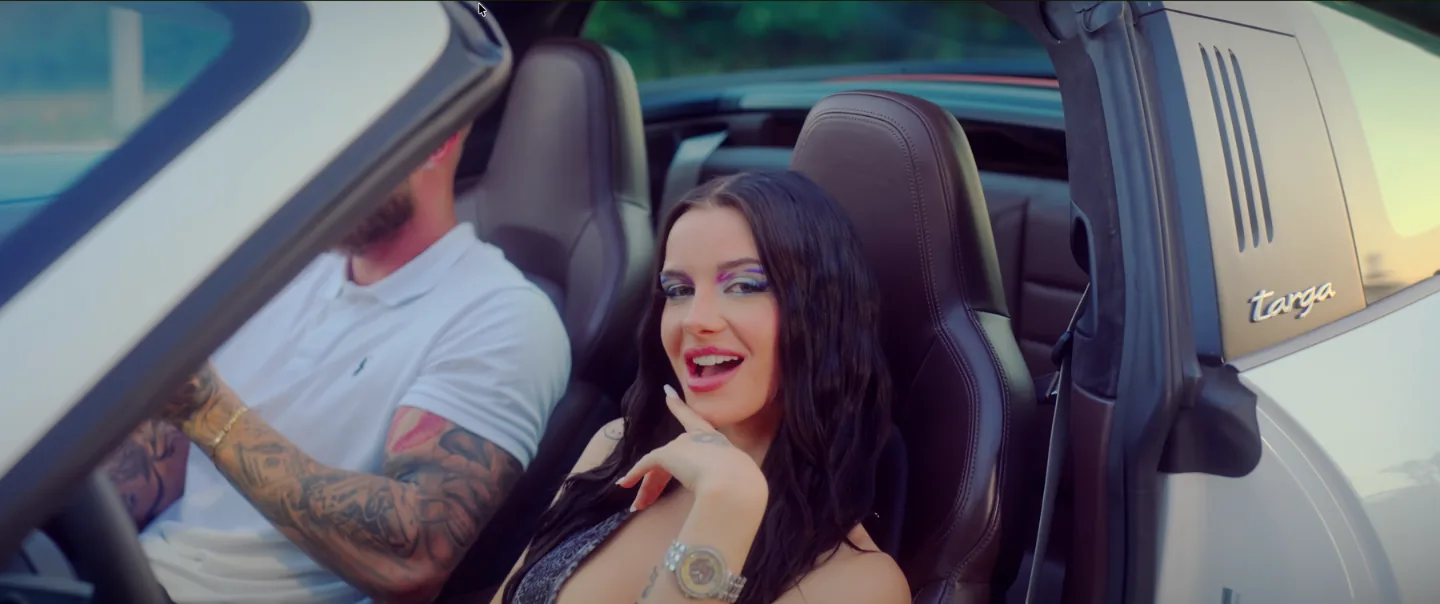
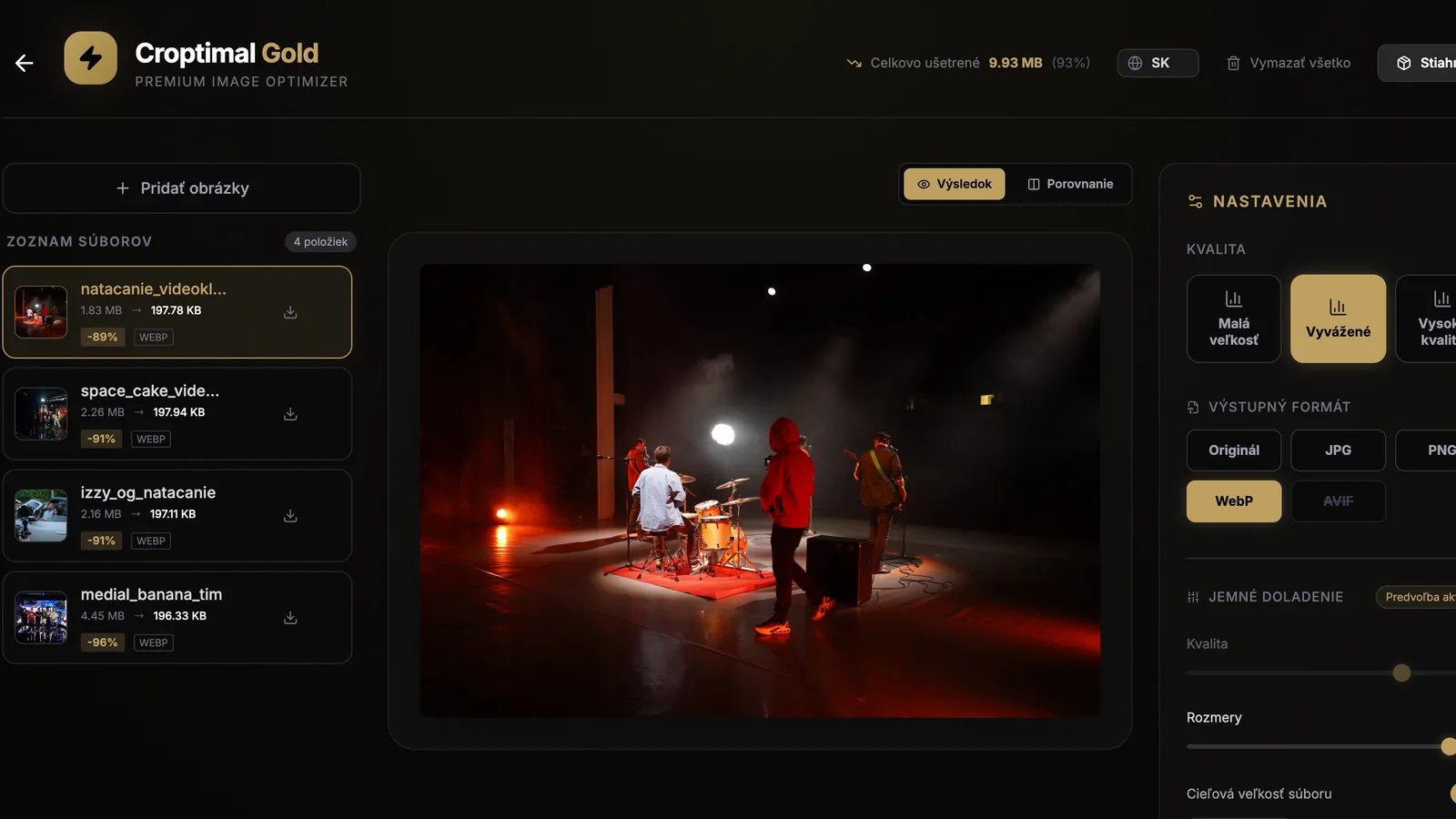
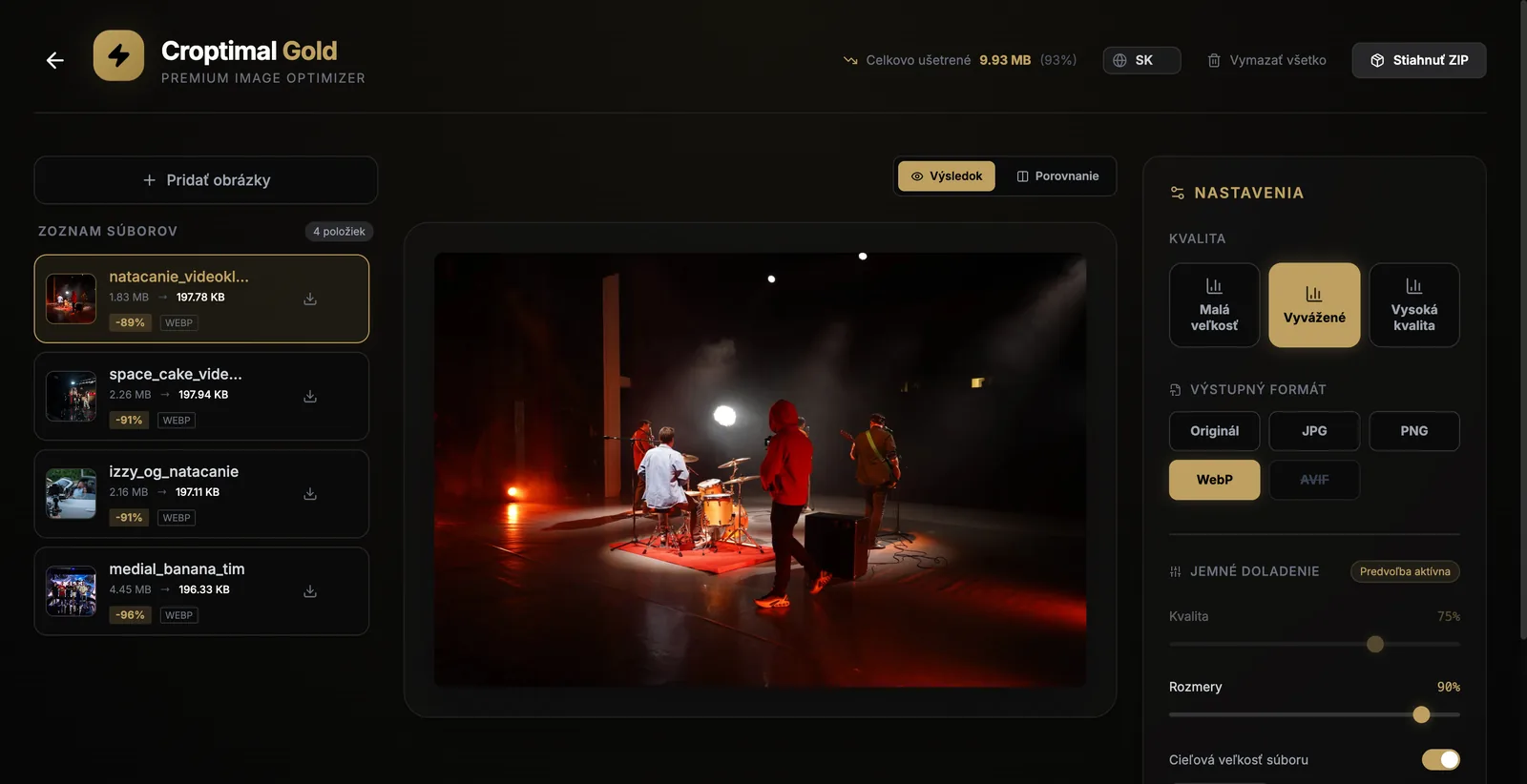
We loaded four high-quality JPG behind-the-scenes photos from our shoots into the optimizer. Settings: Balanced preset, WebP format, 90% dimensions and a 200 KB target size.
| Photo | Before | After (WebP) | Saving |
|---|---|---|---|
| Falling music video shoot | 1.83 MB | 197.78 KB | −89% |
| Space Cake music video set | 2.26 MB | 197.94 KB | −91% |
| Shooting with Izzy OG | 2.16 MB | 197.11 KB | −91% |
| Medial Banana – team | 4.45 MB | 196.33 KB | −96% |
| Total | 10.7 MB | 0.79 MB | −93% |
The whole process took a few seconds, and the difference in quality is not visible to the naked eye on the web – which you can check right in the tool with the comparison feature (see below).
Every feature of the image optimizer
1. Image upload and batch processing
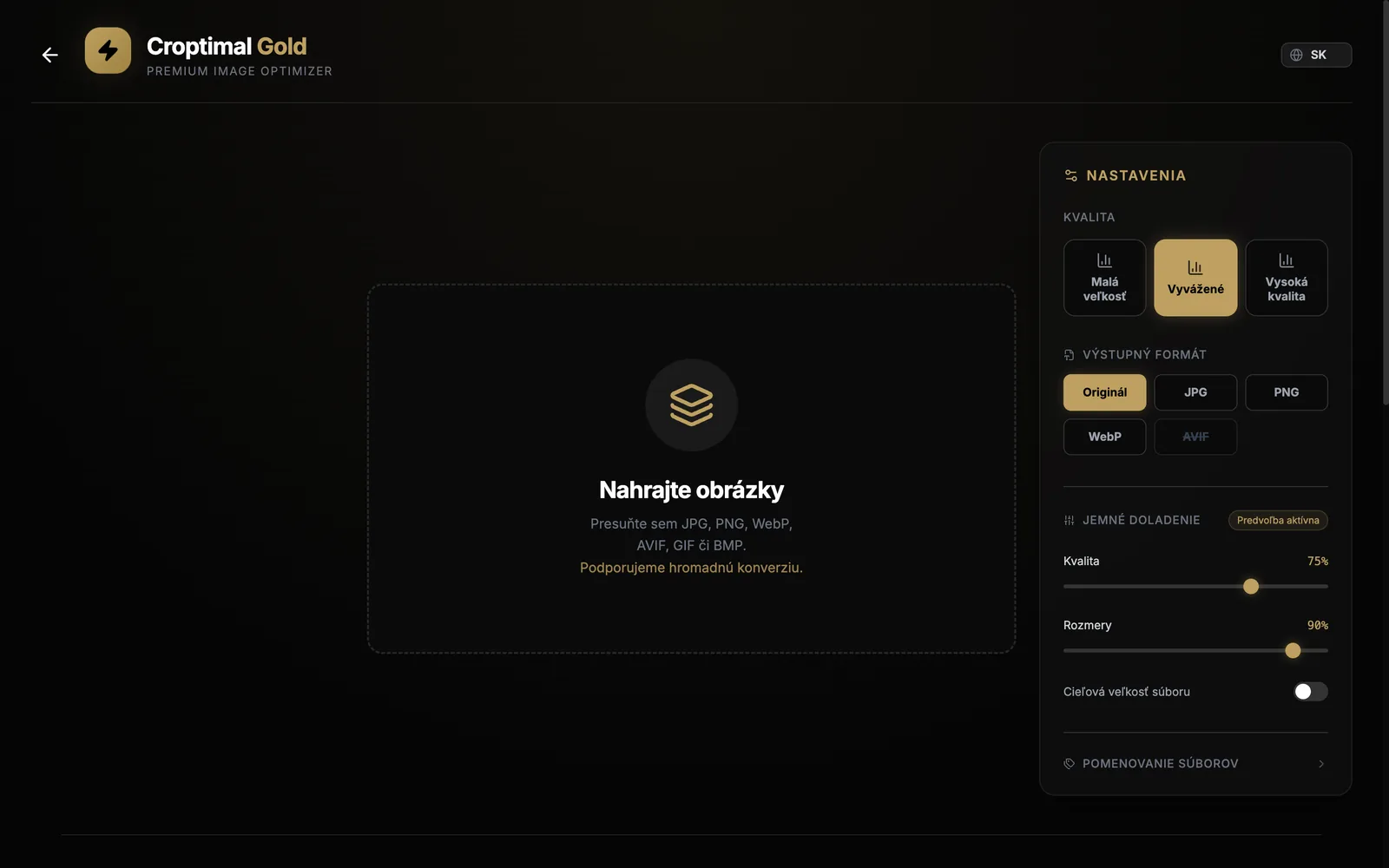
Simply drag and drop your photos into the marked area (Upload Images) or pick them in the file dialog. You can load dozens at once – Croptimal processes them all with the same settings. Add more at any time with Add Images. It reads JPG, PNG, WebP, AVIF, GIF and BMP.
2. Quality presets
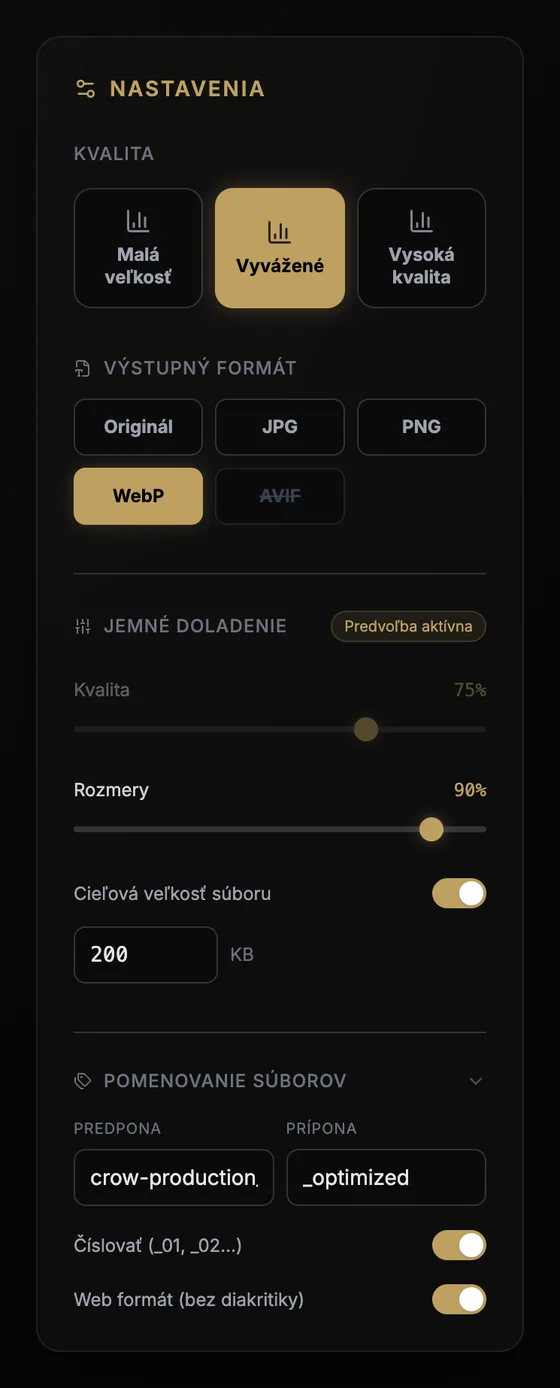
If you don’t want to fiddle with settings, just pick one of three presets:
- Small Size – the biggest saving, good for thumbnails, e-mails and fast websites,
- Balanced – the best quality-to-size ratio for most web photos,
- High Quality – minimal quality loss, e.g. for portfolios or print.
3. Output format – convert to WebP, JPG, PNG and AVIF
Convert your images to another format in one click: Original (keeps the source format), JPG, PNG, WebP or AVIF. For the web we recommend WebP – it is usually 25–35% smaller than JPG and supported by all modern browsers. AVIF compresses even better, but the option is only available in browsers that can encode it (elsewhere it is crossed out).
4. Fine tuning: quality and dimensions
In Fine Tuning you set the exact compression Quality (in percent) and the image Dimensions with sliders – 50%, for example, halves both width and height. Reducing dimensions is the most effective way to save space on photos straight from a camera, which often have 5,000 pixels or more.
5. Target file size in KB
Need a photo to be no more than, say, 200 KB (an online shop, CMS or form limit)? Turn on Target file size and enter a value from 5 to 20,000 KB. Croptimal works out the quality itself – the quality slider is locked while this is on. That is exactly how all photos in our test ended up just under 200 KB.
6. File naming and web-safe names
In File Naming you set up batch renaming:
- Prefix – text at the start of the name (e.g. a brand or project name),
- Suffix – text at the end (
_optimizedby default), - Add numbering – adds sequence numbers
_01,_02…, - Web-safe (no accents, no spaces) – removes accents and spaces so you get names that are suitable for the web and SEO.
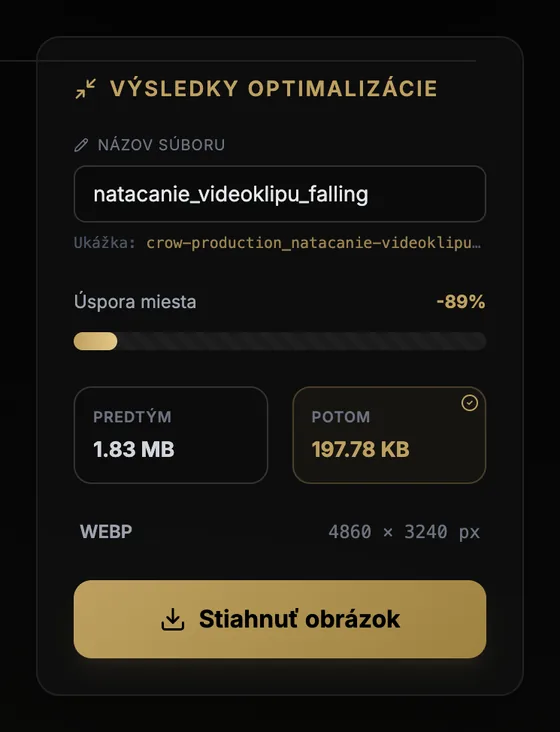
For example, natacanie_videoklipu_falling.jpg becomes crow-production_natacanie-videoklipu-falling_optimized_01.webp. Descriptive file names help your images rank in Google Images.
7. Results, renaming and total savings
For each file you see the size before and after, the percentage saved, the output format and the new dimensions in pixels. You can rename any file directly in the list or in the Optimization Results panel, which also shows an exact preview of the final file name. The header continuously shows the total saved across all photos.
8. Before and after comparison
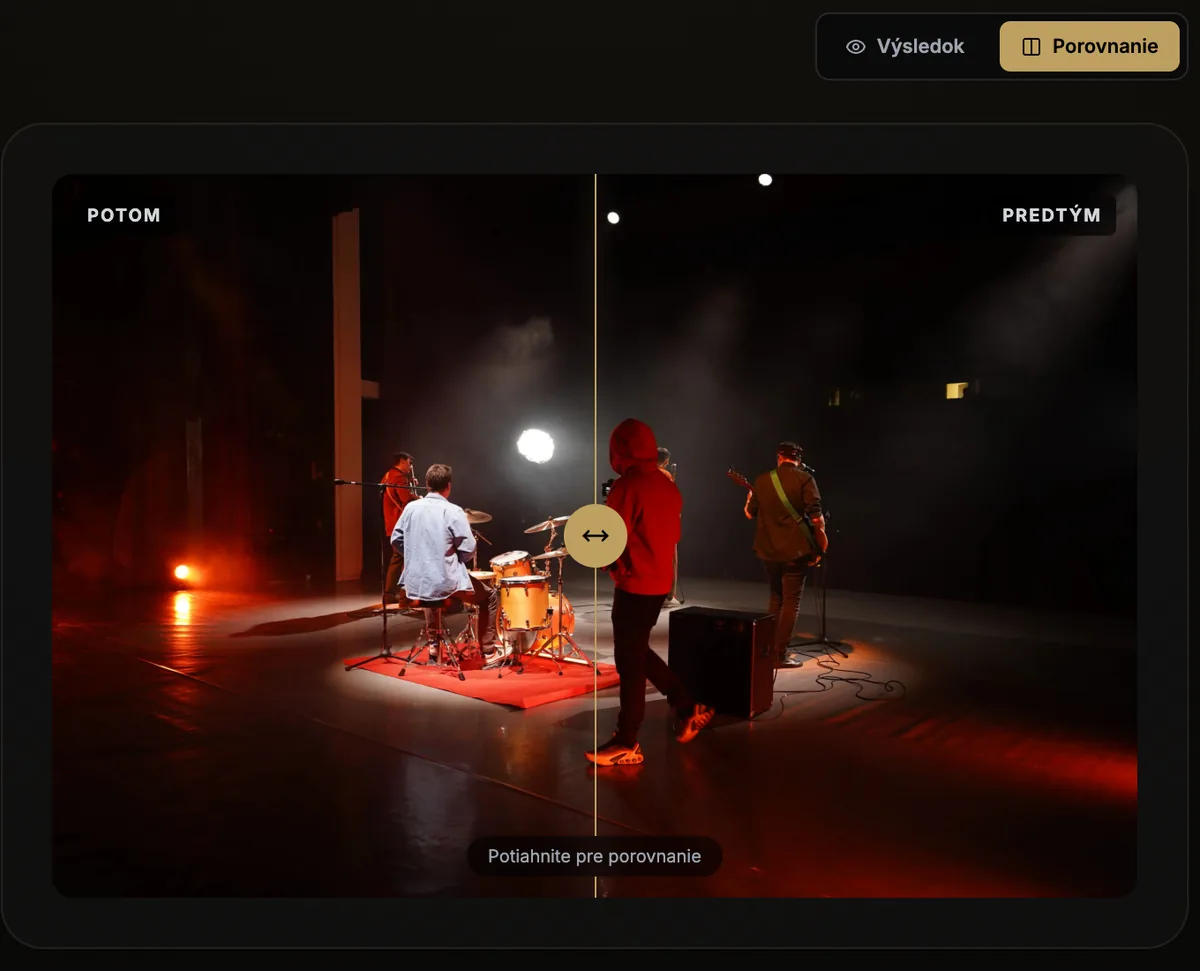
Switch to Compare to overlay the original and the optimized photo and compare them with a slider. You can see straight away whether the compression has affected any details – if it has, just choose a higher quality and the result is recalculated.
9. Download one by one or as a ZIP
Download each image separately with Download Image or all at once with Download All (ZIP). Clear All empties the list so you can start again.
10. Privacy: your photos never leave your device
Unlike many online compressors, your images are not uploaded to any server. The whole optimization runs in your browser, so you can safely use Croptimal for client, company or private photos.
11. On mobile and in six languages
The optimizer works on desktop, tablet and mobile. You can switch the interface to English, Slovak, Czech, Ukrainian, German or Hungarian.
How to shrink photos for the web in one minute
- Open opti.crowproduction.sk.
- Drag your photos into Upload Images (dozens at once is fine).
- Choose the Balanced preset and the WebP format.
- For photos straight from a camera, lower the Dimensions (e.g. to 40–50%) or turn on Target file size – 200–300 KB is plenty for large web photos, 100–150 KB for images in an article.
- In File Naming, turn on Web-safe and add a prefix with a keyword.
- Check the quality with Compare and download everything with Download All.
Which format should you choose?
- WebP – the best choice for photos on websites and social media.
- AVIF – even smaller files, if both your browser and the system where you’ll use the images support it.
- JPG – when you need maximum compatibility (older systems, printers, some online shops).
- PNG – only for graphics, logos and images with a transparent background.
Conclusion
Croptimal is a free image optimizer that handles compression, WebP conversion, resizing, target size in KB and batch renaming – without sign-up and without your photos ever leaving your device. We use it every day when building websites for our clients and we’re happy to make it available to you too.
👉 Try it at opti.crowproduction.sk. You’ll find our other tools in the Apps section, and if you need a fast website that looks great and ranks well in search, take a look at our web projects or get in touch.